

High Quality Liquid Crystal Display Essentials You Should Know
2026-11-02
When a display fails to meet expectations, the culprit is rarely obvious. A screen can look sharp in a showroom yet wash out under sunlight, or pass a quick inspection but drift in color after weeks of use. That's why understanding the essentials of high-quality liquid crystal displays is more than a technical checkbox—it's how you avoid costly compromises. From backlight uniformity to viewing-angle stability, the details matter. Here, we'll walk through what you should know before specifying or sourcing your next LCD, with insights from Jingda-Display on what separates premium panels from the rest.
Not All LCD Panels Are Equal: A Quick Field Guide
Walk into any electronics store and you'll see dozens of laptops and monitors, all boasting about their LCD screens. But spend a few minutes comparing them side by side, and you'll notice something strange: the same 'Full HD' resolution can look completely different depending on which panel you're staring at. That's because LCD technology isn't a single thing—it's a family of compromises.
The big three you'll encounter are TN, VA, and IPS. TN panels are fast and cheap, making them the default for budget gaming monitors, but they suffer from washed-out colors and terrible viewing angles. VA panels offer deep blacks and high contrast, which is great for watching movies, but they often smear fast motion with ghosting. IPS sits in the sweet spot for most people: accurate colors and wide viewing angles, at the cost of slightly slower response times and a bit of backlight bleed in dark scenes.
Before you buy, don't just look at the spec sheet. Tilt the screen up and down—if the colors shift dramatically, it's probably a TN. Play a dark video and check for uniform blacks—if you see glowing corners, that's typical IPS bleed. And if you're editing photos or design work, skip TN entirely unless you have a colorimeter and a lot of patience. In the end, the best LCD is the one whose flaws you can live with.
Color Gamut Numbers Explained Without the Jargon
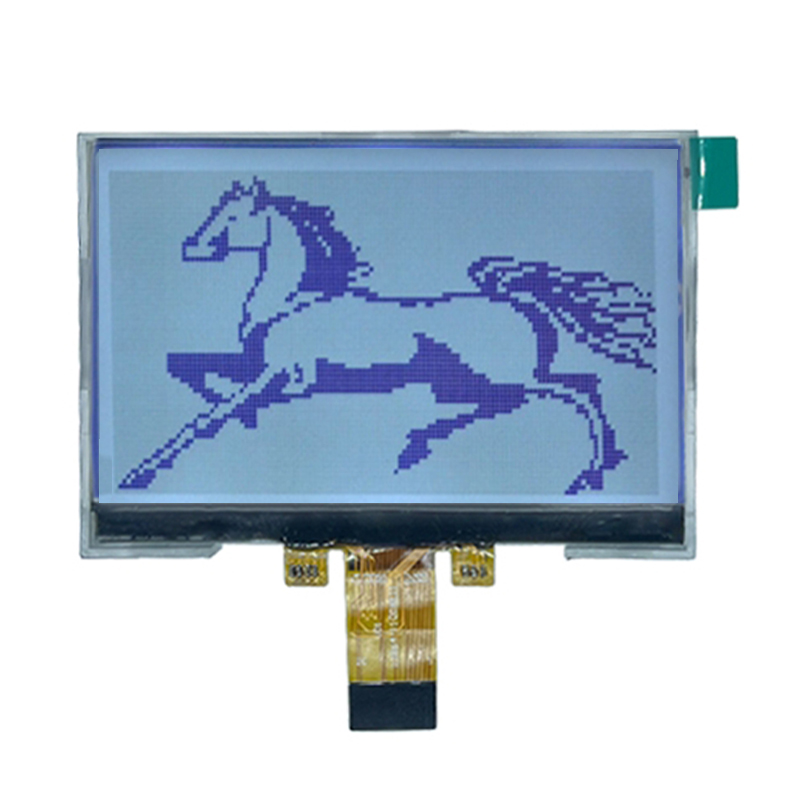
When you see a color gamut figure like 72% NTSC or 100% sRGB, it is simply a way of comparing the range of colors a display can reproduce against a defined reference palette. Picture it as a coloring box: the reference standard is the full set of crayons, and the percentage is how many of those crayons the screen can actually show. A 100% sRGB rating means the monitor covers the entire sRGB crayon set, while a 72% NTSC rating means it only handles about three-quarters of the larger NTSC box.
One common trap is assuming a bigger number always looks better. The reference matters just as much as the percentage. A display claiming 100% sRGB may be perfectly fine for everyday web browsing and office work, but it might cover far less of the DCI-P3 palette used in many movies. In practice, for most people, anything above 90% sRGB is comfortable, while creators who edit photos or video often look for 95% DCI-P3 or higher. So before paying extra for a high gamut number, ask which standard it is measured against and whether your work actually needs those extra colors.
Why Peak Brightness Alone Won't Save Poor HDR
A display can hit 2,000 nits on a 10% window and still mangle a sunset. Those eye-searing highlights grab headlines, but HDR is built on relationships between bright and dark within the same frame. When an edge-lit LCD tries to push a specular highlight while the rest of the scene sits in gray mud, the extra brightness just makes the flaws more obvious. You get blooming halos around lamps, crushed shadow detail near bright skies, and a picture that feels like a flashlight pointed at a dirty window rather than a coherent image.
Tone mapping often gets ignored in favor of raw nits. A panel with high peak output but a lazy roll-off will clip the top end of the signal or compress mid-tones until skin looks plastic. Meanwhile, a lower-nit OLED with per-pixel control can preserve more visible detail because it doesn't have to fight a backlight. The real test is how the display distributes luminance across the frame, not how loudly it can scream in a test pattern.
Color volume suffers too. Brightness without enough saturation at the top end turns vivid neon signs into washed-out pastels, and dark scenes lose their depth when blacks are lifted to avoid haloing. Poor HDR isn't just dim, it's spatially inconsistent: bright zones bleed, dark zones glow, and the entire image loses the depth that makes HDR worth having.
Refresh Rate vs. Response Time: What Gamers Miss
Most buying guides pit refresh rate against response time like they're competing stats, but the real story is how they interact at the millisecond level. A 240Hz panel means a new frame every 4.17ms, yet if your pixel transition takes 6ms, you're effectively seeing a blend of two frames before the next one arrives. That mismatch creates the smearing many gamers blame on response time alone, when the bottleneck is actually a refresh interval that outpaces the panel's physical ability to settle.
Where this gets sneaky is in mid-transition colors. Response time figures are usually quoted for gray-to-gray changes, but real games throw wildly different shades at adjacent pixels. A fast vertical refresh looks impressive on paper, yet if the panel can't complete a transition from deep shadow to bright highlight within one refresh window, you'll catch ghosting that no frame rate counter will explain. Testing with mixed-color motion patterns, not just spec sheets, reveals which displays hold up when frames are coming that quickly.
Another overlooked factor is how overdrive settings warp this balance. Cranking pixel overdrive to chase a lower response time can introduce inverse ghosting—bright or dark coronas that trail moving objects—precisely when your refresh rate is highest. The trick is finding the overdrive sweet spot that keeps transitions inside the refresh window without overshooting, and that sweet spot changes with frame rate. A monitor tuned for 60Hz may look pristine, but switch to 240Hz and those same settings can turn a headshot flick into a smear of artifacts.
The First Five Minutes: Spotting Backlight Bleed and Dead Pixels
Backlight bleed rarely announces itself in a bright room. Dim the lights, pull up a full black image, and let your eyes adjust for thirty seconds. Look near the bezel corners and along the edges, where a faint milky glow or clouding often hides. Move your head slightly off-axis; some panels shift the glow, which helps separate true bleed from IPS glow.
Dead pixels are easier to catch with solid primary colors. Cycle through red, green, blue, and white at full screen. A dead pixel stays black on every color, while a stuck pixel gets stuck on one channel and shows as a bright dot against complementary backgrounds. A magnifying glass or phone camera zoom makes tiny defects obvious without hunting.
Use those first five minutes to check the panel before cables and settings become variables. If the glow stays even and no pixel stays dark across all test screens, you can move on to brightness and contrast without second-guessing the hardware.
HDMI, DisplayPort, USB-C: Future-Proofing Your Display
When choosing a display, the ports on the back matter just as much as the panel itself. HDMI remains the universal default, handling everything from laptops to game consoles, but its version matters: HDMI 2.1 unlocks 4K at 120Hz and beyond, while older cables quietly cap your refresh rate. DisplayPort, meanwhile, is the enthusiast's choice for PC gaming and multi-monitor setups, thanks to higher bandwidth and daisy-chaining via MST. Then there's USB-C, which bundles video, data, and up to 100W of power delivery into a single cable—ideal for sleek desks and modern laptops that treat dongles as relics.
Future-proofing isn't about chasing every new label; it's about matching ports to how you'll actually use the display. If you edit video or play fast-paced shooters, look for at least one DisplayPort 1.4 or HDMI 2.1 port, and consider whether USB-C with DP Alt Mode can replace a separate power brick. For a multi-device setup, check how many inputs you'll need—switching cables gets old fast. Also pay attention to HDCP support and eARC if you plan to route audio through the display to a soundbar.
A smart approach is to buy a display with one or two extra ports beyond today's needs. That spare HDMI or USB-C input might feel unnecessary now, but it becomes the difference between a monitor that lasts five years and one you outgrow in two. Cables are cheap; replacing a monitor because you skimped on ports is not. So before you click buy, think about the next laptop, console, or dock you might own—and make sure your display can shake hands with all of them.
FAQ
A quality LCD typically shows deeper blacks and more stable colors when viewed off-center. You'll also notice less backlight bleed around the edges and a more even brightness across the screen. Budget panels often have a washed-out look, especially in dark scenes.
IPS generally offers the widest viewing angles and most consistent color, which is why it's favored for photo editing and design. However, a well-calibrated VA panel can also deliver excellent color, and some high-end VA screens beat cheap IPS models. The calibration and factory tuning matter just as much as the panel type.
Even for scrolling documents or watching video, a 120Hz refresh rate makes motion feel smoother and reduces eye strain. Response time affects ghosting—if it's too slow, moving text or cursor can leave trails. A 60Hz screen is fine for static work, but once you try higher, going back feels choppy.
Look for factory calibration reports or claims of Delta E < 2. In stores, display a pure white image and check for color tints; then a gray gradient to spot banding. If the screen shifts color when you tilt it slightly, that's a warning sign. For professional use, renting a colorimeter for a quick check is worth it.
Yes. Edge-lit backlights are thinner but often cause uneven brightness and clouding. Full-array local dimming (FALD) gives much better contrast, especially for HDR. If you watch movies in a dark room, a direct-lit or FALD panel will look noticeably better than a cheap edge-lit one.
Contrast affects perceived depth more than resolution in many cases. A 1080p screen with a 3000:1 contrast ratio can look more lifelike than a 4K screen with 800:1. Dark details get crushed or lifted depending on contrast, so for cinematic content, contrast often wins over pixel count.
A good LCD with quantum dots and full-array local dimming can produce stunning HDR, often brighter than OLED in well-lit rooms. But it can't match OLED's per-pixel black levels, so you may see haloing around bright objects. For most people, a high-end LCD HDR is more than enough—just avoid screens with HDR labels but peak brightness under 400 nits.
Prioritize an IPS or good VA panel, at least 300 nits brightness for bright rooms, a contrast ratio over 1000:1, and factory color calibration if possible. If you watch fast content, aim for 120Hz or higher. Check for USB-C connectivity if you use a laptop. Finally, read reviews that mention backlight bleed and uniformity, as those are hard to judge in a store.
Conclusion
When shopping for a display, the assumption that all LCD panels deliver the same experience is a costly mistake. A quick field guide reveals that panel types—TN, IPS, and VA—each carry distinct strengths and weaknesses in color accuracy, viewing angles, and contrast. Beyond the panel, color gamut numbers like sRGB, DCI-P3, and Adobe RGB are often thrown around without context. A higher percentage sounds better, but what actually matters is whether the gamut matches the content you consume and the color management of your operating system. Similarly, peak brightness has become a marketing crutch for HDR performance. A panel might hit 1,000 nits in a tiny window, yet fail to maintain local dimming control or black levels in real scenes, leaving HDR looking washed out or flat. Gamers, meanwhile, chase high refresh rates but overlook response time—a slow pixel transition can cause ghosting even at 240Hz, making motion clarity worse than a well-tuned 144Hz display with fast gray-to-gray response.
The first five minutes after unboxing are critical for spotting physical defects. Backlight bleed along edges and dead or stuck pixels are common issues that manufacturers often consider within tolerance, so knowing how to test with solid color images before the return window closes saves frustration. Finally, connectivity deserves more attention than it gets. HDMI 2.1, DisplayPort 1.4, and USB-C with DisplayPort Alt Mode are not interchangeable—bandwidth limits, DSC support, and dock compatibility can bottleneck your panel’s resolution and refresh rate. A future-proof display should have at least one port that aligns with your next GPU or laptop upgrade, not just what works today. By weaving these essentials together—panel type, color gamut context, HDR realism beyond peak nits, motion performance, defect checks, and port selection—you move past spec-sheet hype and choose a high quality liquid crystal display that holds up in daily use.
Contact Us
Contact Person: Vincent
Email: [email protected]
Tel/WhatsApp: 86 135 5485 1379
Website: https://www.jda-display.com/